To work with gRPC in Python, you need to install the following packages:
sudo python3 -m pip install grpciopython3 -m pip install grpcio-toolsThen you can automatically generate Python code with that command:
pythonpython3 -m grpc_tools.protoc -I./protos --python_out=. --pyi_out=. --grpc_python_out=. ./protos/prc.proto
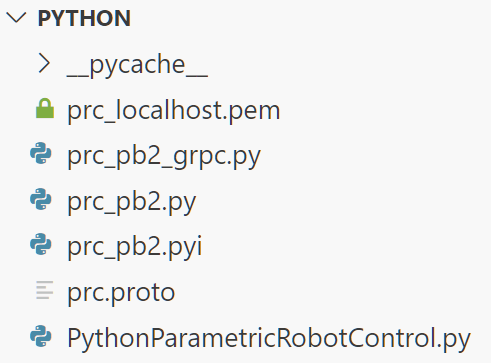
This gets you the following three files:
prc_pb2_grpc.py
prc_pb2.py
prc_pb2.pyi
Along in the folder is the prc_localhost.pem certificate for the SSL encryption. It is included in the example project.
Import the following libraries for the sample
pythonimport logging
import os
import time
import threading
import grpc
import prc_pb2
import prc_pb2_grpc
Next, set up the path to the *.pem certificate and establish the GRPC channel. To avoid issues in the future, set the message lengths to unlimited. Also enable compression. Note that depending on the version of the grpc library, the compression may be
grpc.Compression.Gzip instead of grpc._compression.Gzip.pythonprint("Getting certificate from same folder as the python code...") __location__ = os.path.realpath( os.path.join(os.getcwd(), os.path.dirname(__file__))) with open(os.path.join(__location__, 'PRCServerCertificate.pem'), 'rb') as f: credentials = grpc.ssl_channel_credentials(f.read()) options=[ ('grpc.max_send_message_length', -1), ('grpc.max_receive_message_length', -1), ] print("Connecting to https://127.0.0.1:5001...") with grpc.secure_channel("127.0.0.1:5001", credentials, options, grpc._compression.Gzip) as channel: stub = prc_pb2_grpc.ParametricRobotControlServiceStub(channel)
Ping the PRC Server and choose a unique ID for your robot
pythonresponse = stub.SendPing(prc_pb2.Ping(payload="", time_ms=10))
robot_id = "PRC_Test"
You can then setup your robotic system. The robot driver class and preset robot class reference existing drivers/robots in PRC.
pythonsetup_robot_reply = stub.SetupRobot(
	prc_pb2.SetupRobotRequest(
	    client_id=robot_id,
	    software_version="0.1",
	    robot_setup=prc_pb2.Robot(
	        friendly_id="KUKA KR10",
	        robot_driver_class="KUKA.KSS_KRL_Driver",
	        preset_robot_class="KUKA.KUKA_KR610R11002",
	        initial_base=prc_pb2.Base(
	            base_id="0",
	            base_frame=prc_pb2.CartesianPosition(
	                cs=prc_pb2.CoordinateSystem(
	                    origin=prc_pb2.Vector3(
	                        x=0,
	                        y=0,
	                        z=0
	                    ),
	                    x_axis=prc_pb2.Vector3(
	                        x=1,
	                        y=0,
	                        z=0
	                    ),
	                    y_axis=prc_pb2.Vector3(
	                        x=0,
	                        y=1,
	                        z=0
	                    )
	                )
	            )
	        ),
	        tool_dictionary={
	            "0": prc_pb2.Tool(
	                tool_id="0",
	                tool_type=prc_pb2.FrameType.FIXED,
	                tcp=prc_pb2.CartesianPosition(
	                        cs=prc_pb2.CoordinateSystem(
	                        origin=prc_pb2.Vector3(
	                            x=0,
	                            y=0,
	                            z=0
	                        ),
	                        x_axis=prc_pb2.Vector3(
	                            x=1,
	                            y=0,
	                            z=0
	                        ),
	                        y_axis=prc_pb2.Vector3(
	                            x=0,
	                            y=1,
	                            z=0
	                        )
	                    )
	                )
	            )
	        }
	    )
		)
	)
In order to get feedback, we establish the feedback stream and spin up a thread for it.
pythonfeedback_stream = stub.SubscribeRobotFeedback(
    prc_pb2.SubscribeRobotFeedbackRequest(
        id=robot_id,
    )
)

print("Starting separate thread to manage the feedback stream coming from PRC")
stop_event = threading.Event()
feedback_thread = threading.Thread(target=thread_feedback, args=(stop_event, feedback_stream,))
feedback_thread.start()
The relevant thread looks like this.
pythondef thread_feedback(stop_event, feedback_stream):
    for feedback in feedback_stream:
        if stop_event.is_set():
            break

        assert isinstance(feedback, prc_pb2.RobotFeedback)
        field = feedback.WhichOneof('data_package')
        if field == "heartbeat_data":
            print("Feedback thread: Received heartbeat data")
        elif field == "robot_state_data":
            print("Feedback thread: Received robot state data")
        elif field == "settings_data":
            print("Feedback thread: Received settings data")
        elif field == "ping_data":
            print("Feedback thread: Received ping data")
You can now define your movements and group them in
MotionGroup objects.pythonptp_motion_1 = prc_pb2.MotionCommand( axis_motion=prc_pb2.AxisMotion( target=prc_pb2.JointTarget( axis_values=[-45, -90, 90, 0, 0, 0], speed=[0.1] ) ) ) ptp_motion_2 = prc_pb2.MotionCommand( axis_motion=prc_pb2.AxisMotion( target=prc_pb2.JointTarget( axis_values=[45, -90, 90, 0, 0, 0], speed=[0.15] ) ) ) ptp_motion_group = prc_pb2.MotionGroup( commands=[ptp_motion_1, ptp_motion_2], interpolation="C_PTP", motion_group_type=prc_pb2.MotionGroupType.PTP )
Next, put the motion groups into a task. You get the default
robot_settings from the initial SetupRobot call. As they are a dictionary, you can edit them easily.pythontask_reply = stub.AddRobotTask( prc_pb2.AddRobotTaskRequest( id=robot_id, robot_task=prc_pb2.Task( name="Task", type=prc_pb2.TaskType.SIMULATE_AND_EXECUTE_TASK, payload=[prc_pb2.TaskPayload( motion_group_task=ptp_motion_group )] ), robot_settings=prc_pb2.Settings( settings_dictionary=setup_robot_reply.robot_settings.settings_dictionary ) ) )
Among the output of the
task_reply is e.g. the code object, containing the code to run on the robot.You can go through the simulation through the
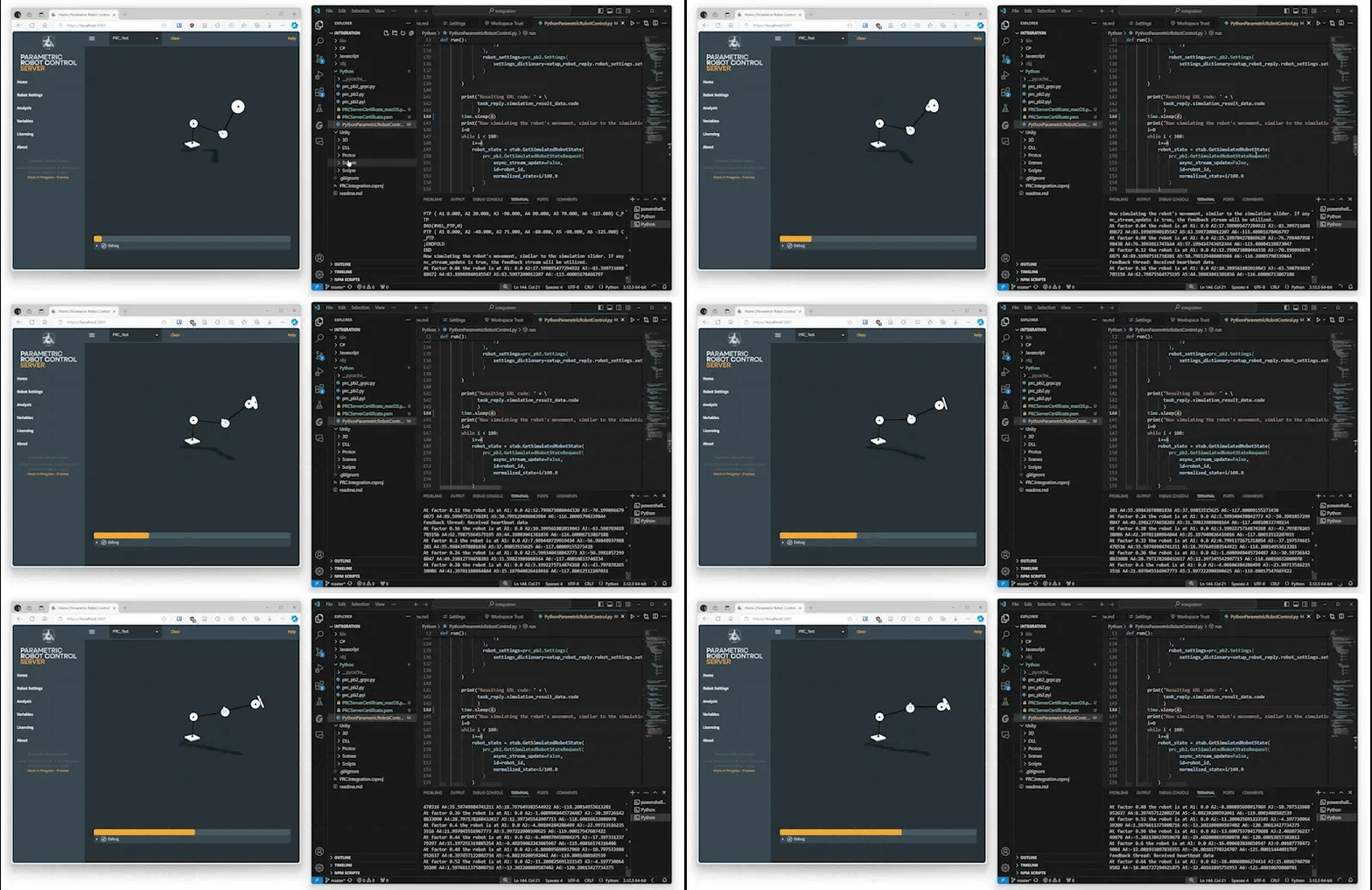
GetStimulatedRobotState call. In the example below, it iterates by 4% every 400ms.pythoni=0 while i < 100: i+=4 robot_state = stub.GetSimulatedRobotState( prc_pb2.GetSimulatedRobotStateRequest( stream_update=False, id=robot_id, normalized_state=i/100.0 ) ) axis_values = robot_state.actual_axis_position.axis_values print("At factor " + str(i/100.0) + " the robot is at A1: " + str(axis_values[0]) + " A2:" + str(axis_values[1]) + " A3:" + str(axis_values[2]) + " A4:" + str(axis_values[3]) + " A5:" + str(axis_values[4]) + " A6:" + str(axis_values[5]) ) time.sleep(0.4)
The full code is available here:
PRC.Integrations
jbraumann • Updated May 10, 2026