

Run Panel
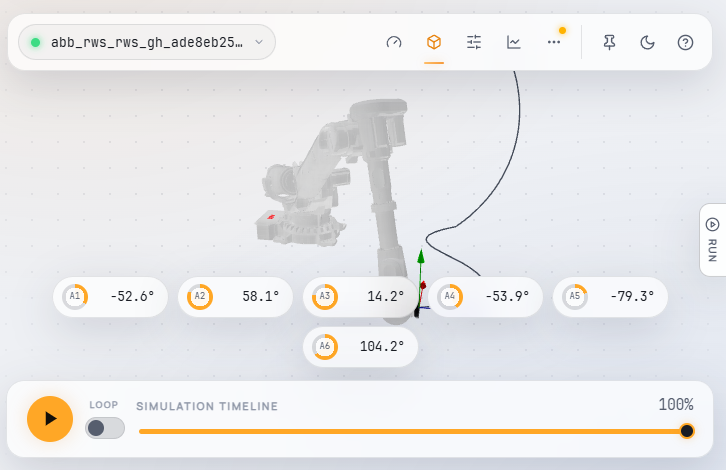
The Run Panel is a drawer on the Server's Visual page: click the Run handle on the right edge of the viewport to open it. It shows everything you need to check and run a program on the currently selected robot without leaving the 3D view — the simulation overview, the generated robot code, the machine controls, and the robot package tools.
Playback stays with the dock at the bottom of the viewport: play/pause, loop, and the simulation timeline slider.
Simulation#
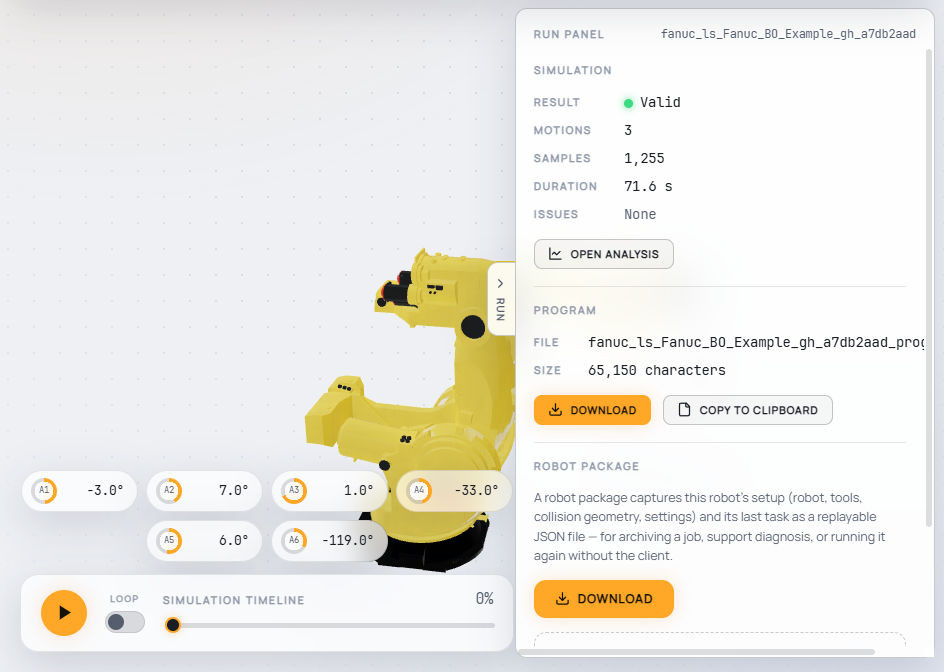
An overview of the last task simulated for the selected robot:
- Result — whether the simulation is valid.
- Motions / Samples / Duration — the size of the toolpath and its estimated cycle time.
- Issues — collisions, out-of-reach targets, singularity regions, and axis alarms found by the simulation. Open Analysis jumps to the Analysis page for the full graphs and issue navigation.
Program#
The robot code generated for the current task, with its file name and size. The file extension matches the driver — e.g. .src (KUKA KRL), .mod (ABB RAPID), .script (UR), .ls (FANUC). Download saves the program to the machine you are browsing from; Copy to Clipboard copies the code text.
Machine#
This section only appears for realtime drivers — KUKA mxAutomation, Universal Robots realtime, NEURA realtime, and ABB Robot Web Services. Offline code-generation drivers have no machine to moderate, so the section is hidden.
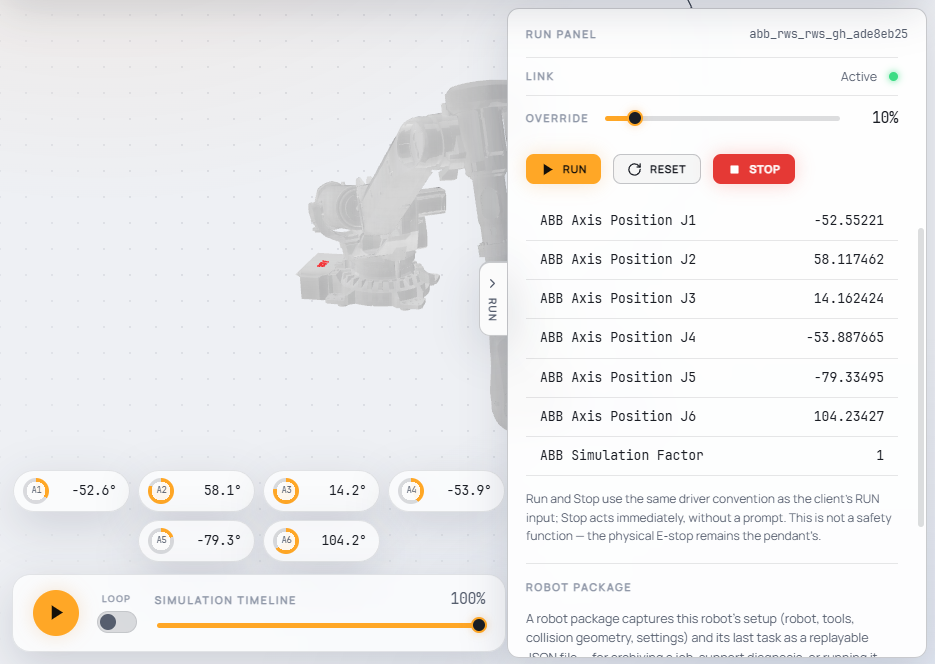
- Link — the live connection status of the driver.
- Override — the speed override (OV) as a percentage. When nothing has set an override yet, the console sets it at a deliberately slow 10%, so a first run never launches at full speed.
- Motion (KUKA mxAutomation only) — the MOVE_ENABLE gate. Disabling it decelerates the robot.
- Run — hands the loaded program to the machine and starts execution. Because the robot will physically move, Run always asks for confirmation first. It has the same semantics as enabling RUN on the client component: the Run variable is set and the loaded task is handed to the driver again.
- Reset — sends an error-reset pulse to the driver (KUKA mxAutomation execute-reset, NEURA error reset, ABB RWS program pointer back to
main). Shown only for drivers that support it. - Stop — stops the drive. The exact behavior is driver-specific (e.g. a controlled deceleration on UR, closing the mxAutomation link on KUKA, stopping RAPID execution on ABB).
Below the controls, the driver's own status variables (mxA …, UR …, NEURA …, ABB …) are listed live — the same values the Settings page's variable view shows.
The machine controls are plain UI over the same well-known control variables (Run, OV, MoveEnable, Reset) that the client components use, so the console and a connected client compose: a program started from Grasshopper can be stopped from the panel and vice versa.
⚠️ Stop is not a safety function. The physical E-stop remains the teach pendant's — never rely on a browser button to make a cell safe.